Activate Subscription
After successfully subscribing to WhaleDown via PayPal, you should activate your subscription within WhaleDown. We have sent your Subscription ID to your email address. You can also log in to PayPal to view your Subscription ID.
Please do not confuse activating a subscription with the ACTIVATE status of a subscription. This refers specifically to operations performed within WhaleDown. It does not alter the status of the subscription.
1. Open My Subscription
After starting WhaleDown, you can find the entry of My Subscription in the settings view. On Windows or macOS, you can also click Avatar in the side panel of WhaleDown to go to the My Subscription view.
2. Enter Subscription ID
After entering the My Subscription view, please click the Activate button located in the bottom-right corner of the view. The format of the PayPal subscription ID is: I-ABCDEFGHIJKL.
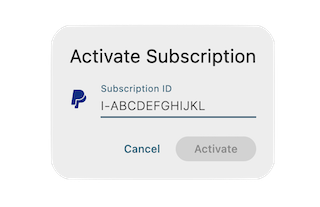
Currently, you only need to enter your Subscription ID to activate your subscription. In the future, WhaleDown will require verification of the email address associated with your PayPal account.
3. What's Next
Thank you for subscribing to WhaleDown. We recommend that you continue reading the following documentation to learn more about subscription-related operations.
If you have trouble activating your subscription, please contact us via email.